Mobile Companion Guide
June 9th, 2026
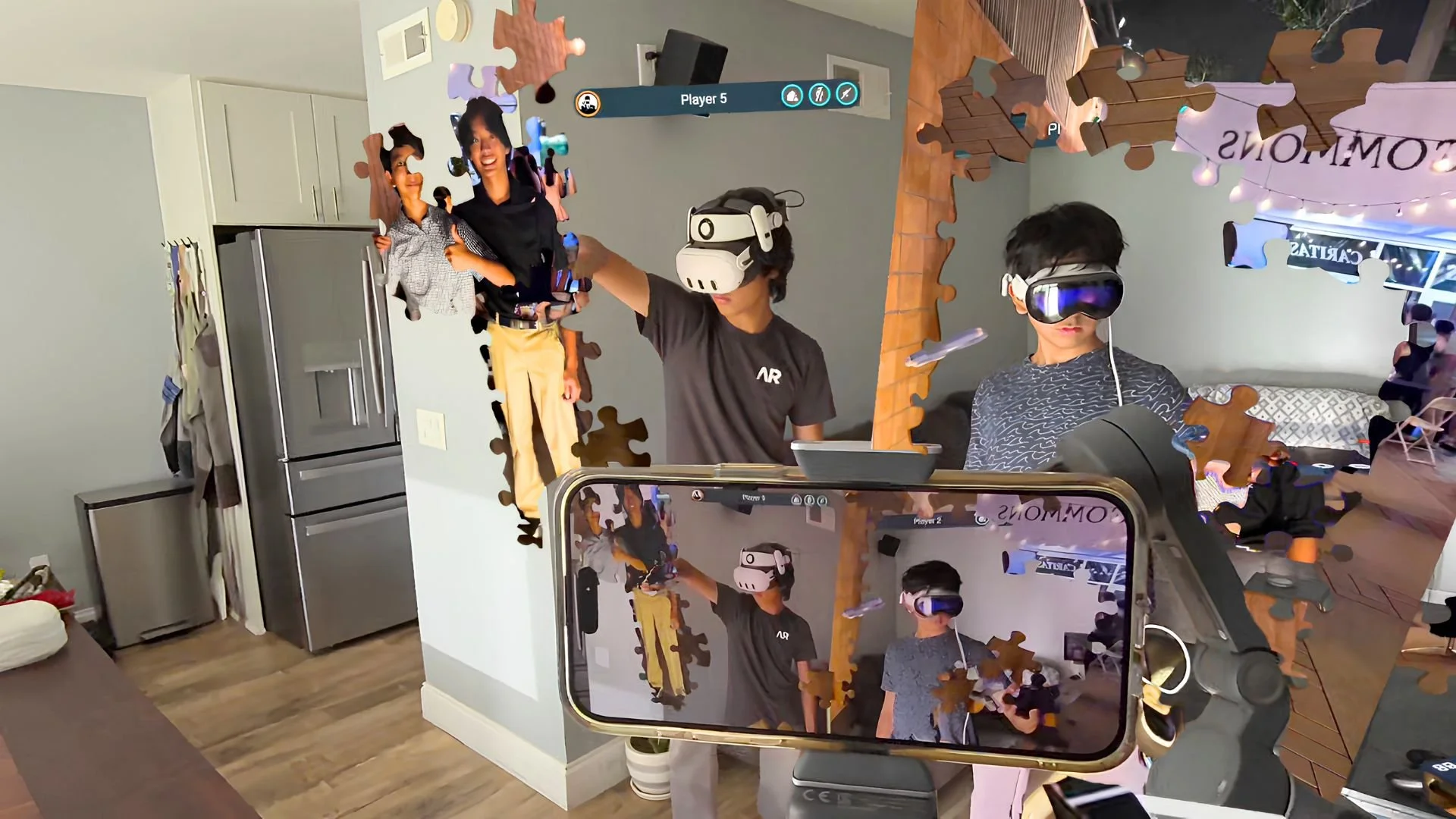
Overview
The Jigsaw Night Mobile Companion extends the multiplayer experience to phones and tablets.
The Mobile Companion allows friends and family to actively (or passively) participate in multiplayer sessions, and can also be used as a mobile spectator device for mixed reality capture.
Controls & Gameplay
When launching the Jigsaw Night mobile companion, the device starts in Augmented Reality mode.
Use your phone as a portal viewer, pointing it toward the content you want to see. Moving the device changes your viewpoint within the shared digital space, while on-screen UI elements can be tapped for interaction.
Touchscreen Gestures
Move a puzzle piece: Puzzle pieces can be pressed and held with a finger to move them around the screen and can be combined with freeform device movement to take the puzzle piece around the space.
Rotate a puzzle piece: A second finger twist can be added to rotate the puzzle piece.
Straighten to the camera: A third finger down will straighten the puzzle piece to the camera.
Use these controls to assist headset players and co-build together.
Note: Grab bars and puzzle boxes cannot be grabbed, so rely on headset players to move those elements at this time.
Gamepad Controls
If you want to turn off Augmented Reality mode, tap the Gamepad icon at the bottom of the screen to switch to Gamepad Mode.
On-Screen Joystick Functions
Left Joystick: Move the camera position
Right Joystick: Change the viewing direction
To climb or descend, aim the viewing joystick upward or downward and move in that direction using the movement joystick.
Note: Direct vertical movement is not currently supported.
Tutorials to Practice
As a Mobile Companion, full puzzle save and resume functionality is not currently available. However, single-player gameplay can be accessed through the Tutorial button.
The Tutorial mode spawns smaller puzzles designed to help players:
Learn the UI
Practice touchscreen interactions
Become familiar with puzzle piece mechanics
Experiment with movement controls
This is the recommended place to learn the controls before joining a multiplayer session.
Joining Multiplayer
Before you begin:
Make sure your mobile device is connected to the internet.
Make sure your friend is in a Jigsaw Night session on the Meta Quest platform.
Have the room name ready and available.
How to Connect to a Session
Step 1: Join the Room
A. Open the Jigsaw Night app on your iPhone or iPad.
B. Tap Multiplayer.
C. Enter an existing room name.
D. The Sync screen will appear.
At this time, all headset users will see your presence as a transparent floating orb with axes representing your player presence. Before being fully in the space, you need to establish your virtual location. This is done through the hub setup screen.
Step 2: Position the Hub Table
While this screen is displayed, you will see several arrows on the screen. These controls adjust the blue multiplayer table.
The hub table represents the centralized shared world origin. If playing remotely and not in the same room, simply use these calibration options to position your playspace in a comfortable location and then close the menu.
Syncing
For players in the same physical space to play together, the table should be placed in the same physical location and rotation for all connected players. This ensures everyone remains in sync.
Coordination can be adjusted by any player at any time.
There are two ways of syncing:
General Calibration
Precision Calibration
General Calibration is intended to get the hub table into the general vicinity of synchronization. It is the easier calibration method, but will always have some degree of imperfection.
Precision Calibration provides fine-tuned controls that allow the alignment to be adjusted much more accurately when needed.
General Calibration Options
1. Touch and Drag
You should see a set of floor axes (red and blue lines with two concentric circle points) on the ground beneath the floor.
Tap the touchscreen on the floor.
Drag to reposition and reorient the table by its "foot."
You should see the other digital objects in the room move and rotate as you do this.
2. Manual Calibration
This method involves holding the phone where you want the center of the table to be.
Hold the phone at the desired table center location.
Press and hold the Manual Calibration button.
You do not need to point the phone face-down. You can angle it forward to view the results.
Release the button when the alignment looks correct.
The table will be centered at the phone camera position, so pull the phone back afterward to view the area.
For better results, hand the phone to someone wearing a headset and have them hold the camera at the table center, pointing forward (toward the far edge of the table past the disconnect button) until the alignment looks correct.
3. QR Code Calibration
This method uses Meta Quest QR Code tracking to provide a general sync.
Note: This method can vary because iPhones and iPads have different screen sizes, while QR Code detection assumes a fixed size.
Turn on QR Code Sync.
Hold the phone up to a Quest 3 or Quest 3S headset.
Allow the QR code to be viewed and calibrated.
Once detected, the QR code will disappear, confirming the sync.
Note: If the code is not detected, try dismissing QR Sync and starting it again.
Finishing Sync
When calibration is complete:
Dismiss the Sync window.
The Sync UI will be hidden.
Your avatar should then appear to other players.
Precision Calibration
For finer precision, use the precision calibration tools to “nudge” or position or refine the rotation of the table. It’s recommended that each player identifies a visually distinct area of the room (such as where two floor panels meet, or the edge of a desk) that both players can use as a ground truth.
Up / Down: Move the table forward and backward (relative to the table's orientation).
Left / Right: Move the table left and right (relative to the table's orientation).
Corner Rotation Arrows: Rotate the table.
Height Buttons: Adjust the table height.
Precision +/- Buttons
Increasing precision makes each nudge move a smaller amount.
Decreasing precision makes each nudge move a larger amount.
Other Notes About Mobile Companion
On-Screen Controls:
Mobile Companions do not need to play in Augmented Reality and can be played comfortably using on-screen mobile controls.
To enable these controls:
Tap the Gamepad icon during gameplay.
The controls will appear on screen.
Supports:
Phones: Portrait mode
iPads: Portrait or Landscape mode
Note: Landscape controls for phones will be available in a future update.
Spectator Camera Mode
To use the phone as a spectator camera:
Tap the full-screen icon in the bottom-right corner.
This clears the view except for the watermark.
The watermark acts as a button to turn full-screen mode off.
To remove the watermark:
Hold three fingers on the screen.
Tap with a fourth finger.
The watermark should then be toggled off.
Note: If recording in Spectator Mode, it is recommended to tap the Music icon to turn off background music.
Download the Companion App
iOS and VisionOS Companion App: